

Setup
1
Navigate to MCP Servers
Go to your CodeRabbit dashboard and navigate to Integrations → MCP Servers.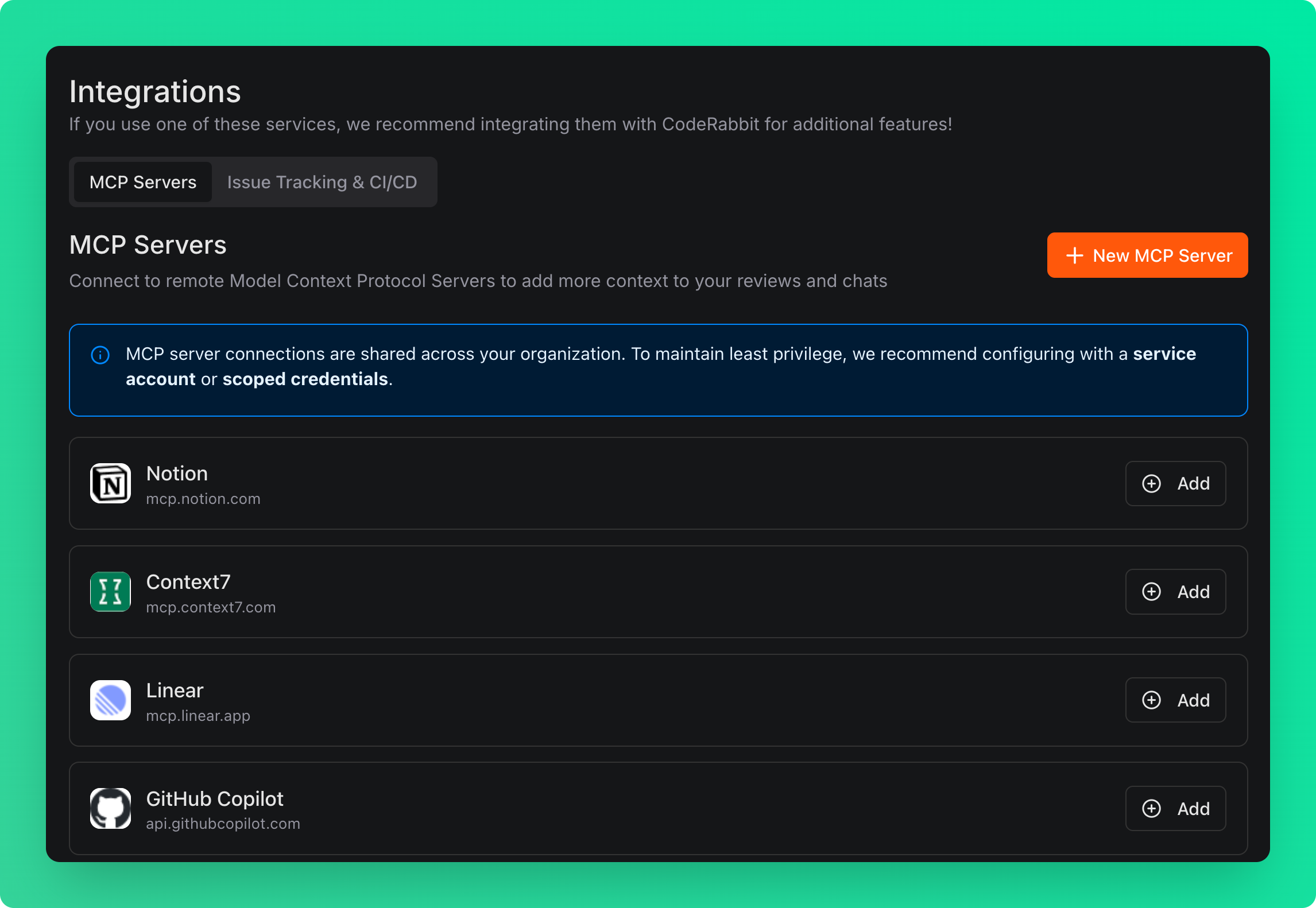
2
Add Context7
Click the Add button next to Context7 MCP server.Add the following header for higher rate limits:
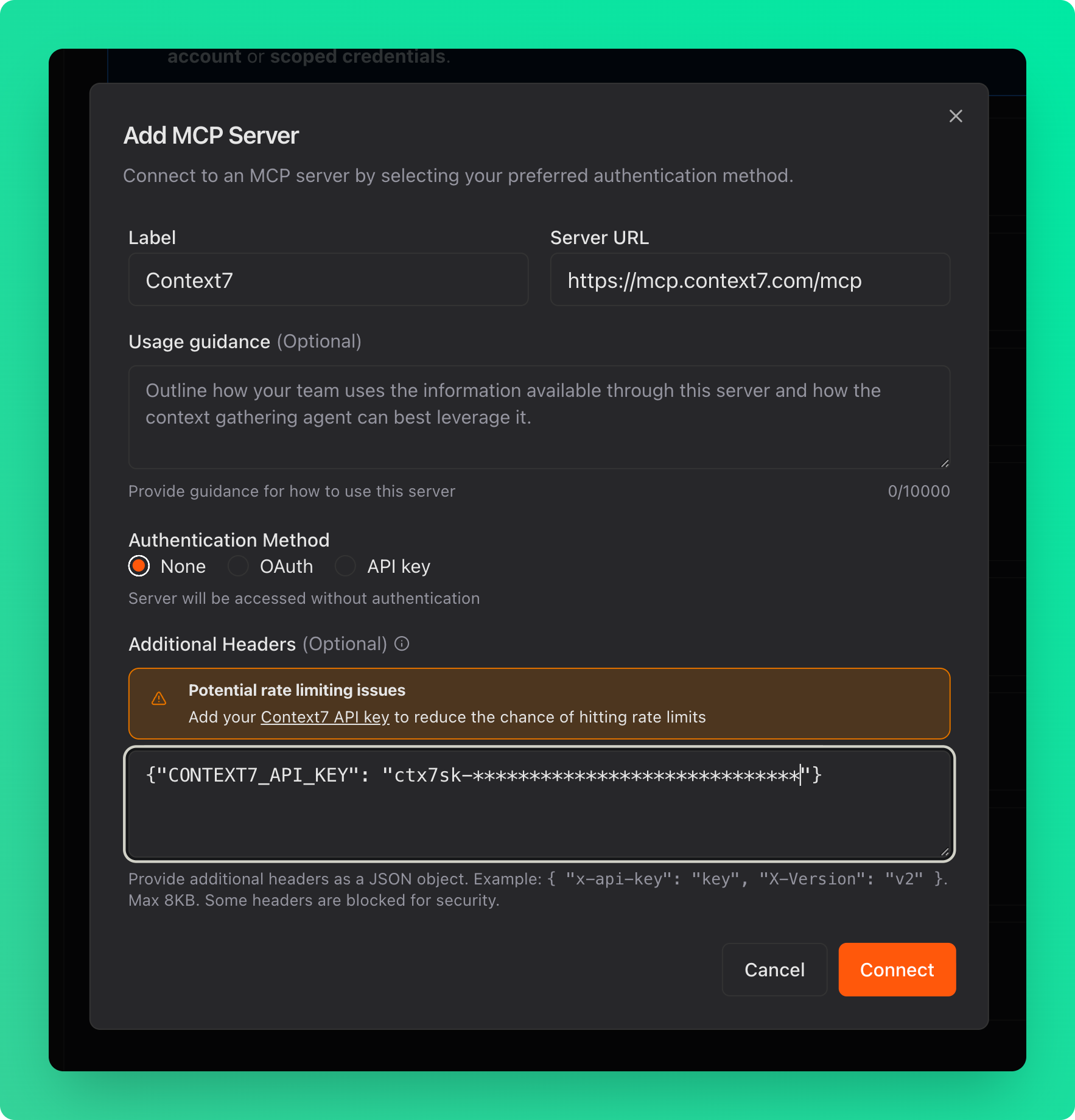
| Header | Value |
|---|---|
CONTEXT7_API_KEY | Your API key from the Context7 dashboard |
3
Connect
Click the Connect button to connect the server.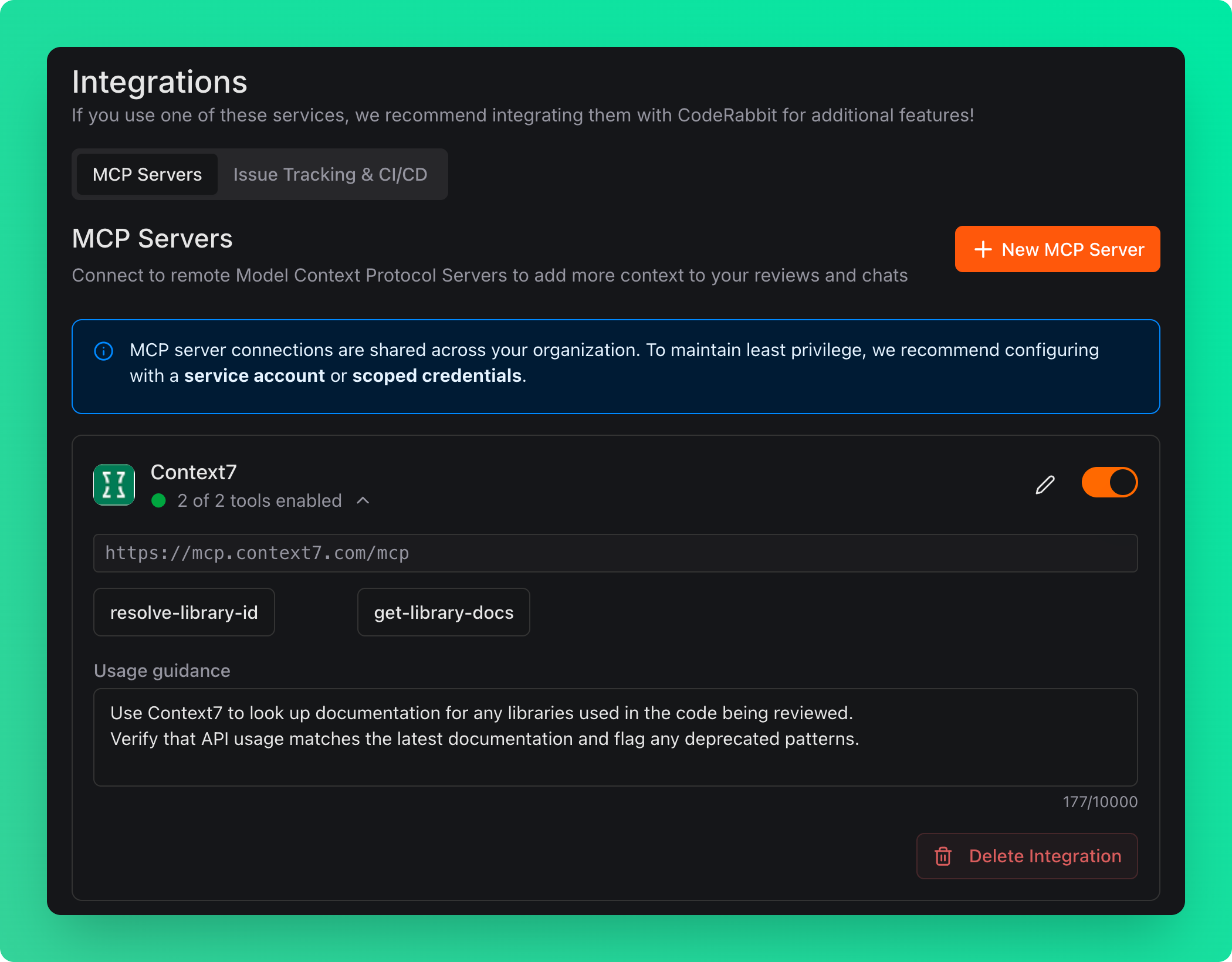
4
Enable for Public Repos
To use Context7 with public repositories, go to Organization Settings → Configuration → Knowledge Base. In the MCP section, select Enabled instead of Auto and click Apply Changes.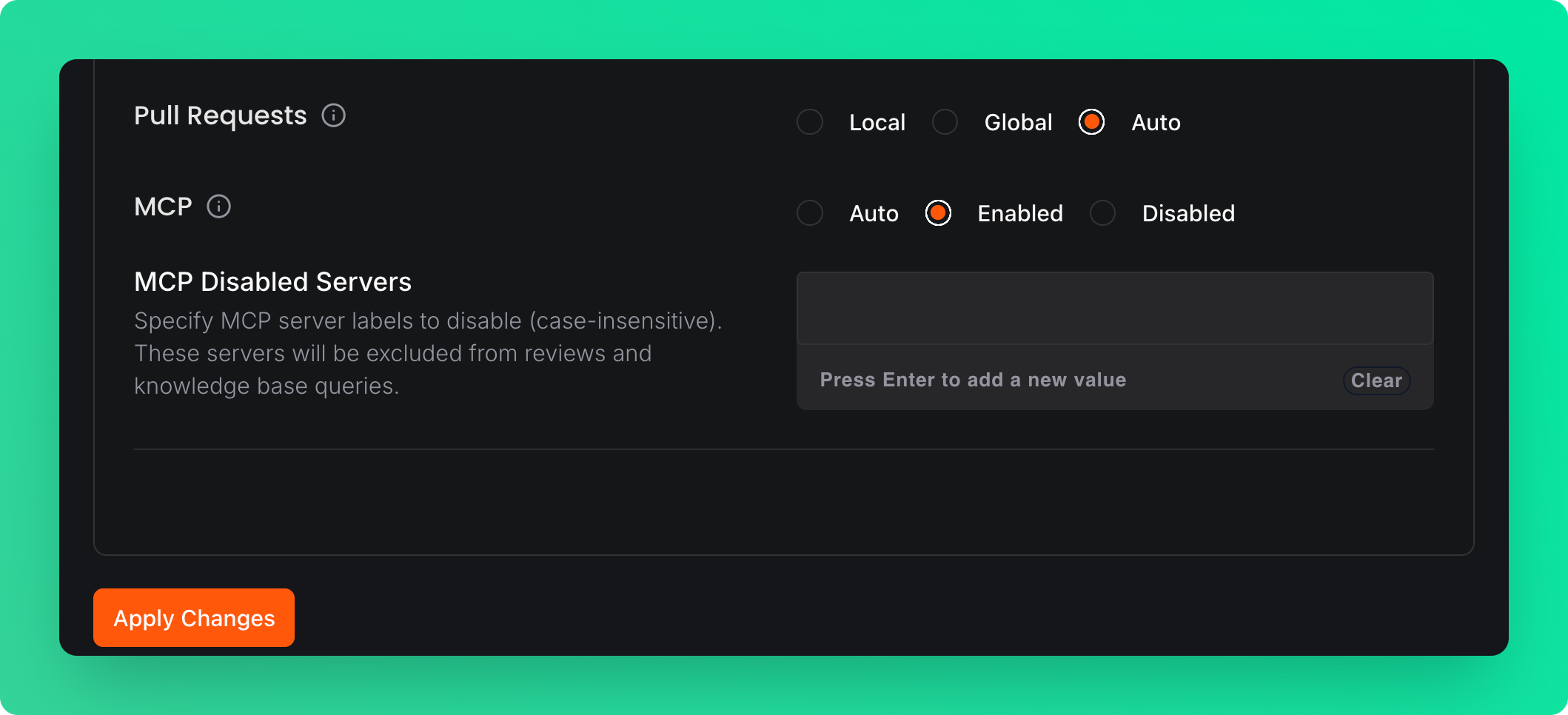
Usage Guidance
In the Usage Guidance field, you can instruct CodeRabbit on how to use Context7 during reviews. For example:How It Works
Once connected, CodeRabbit will query Context7 for relevant library documentation when reviewing pull requests. This helps CodeRabbit:- Verify correct API usage against the latest documentation
- Identify deprecated methods or patterns
- Suggest improvements based on library best practices
- Provide more accurate and informed review comments