

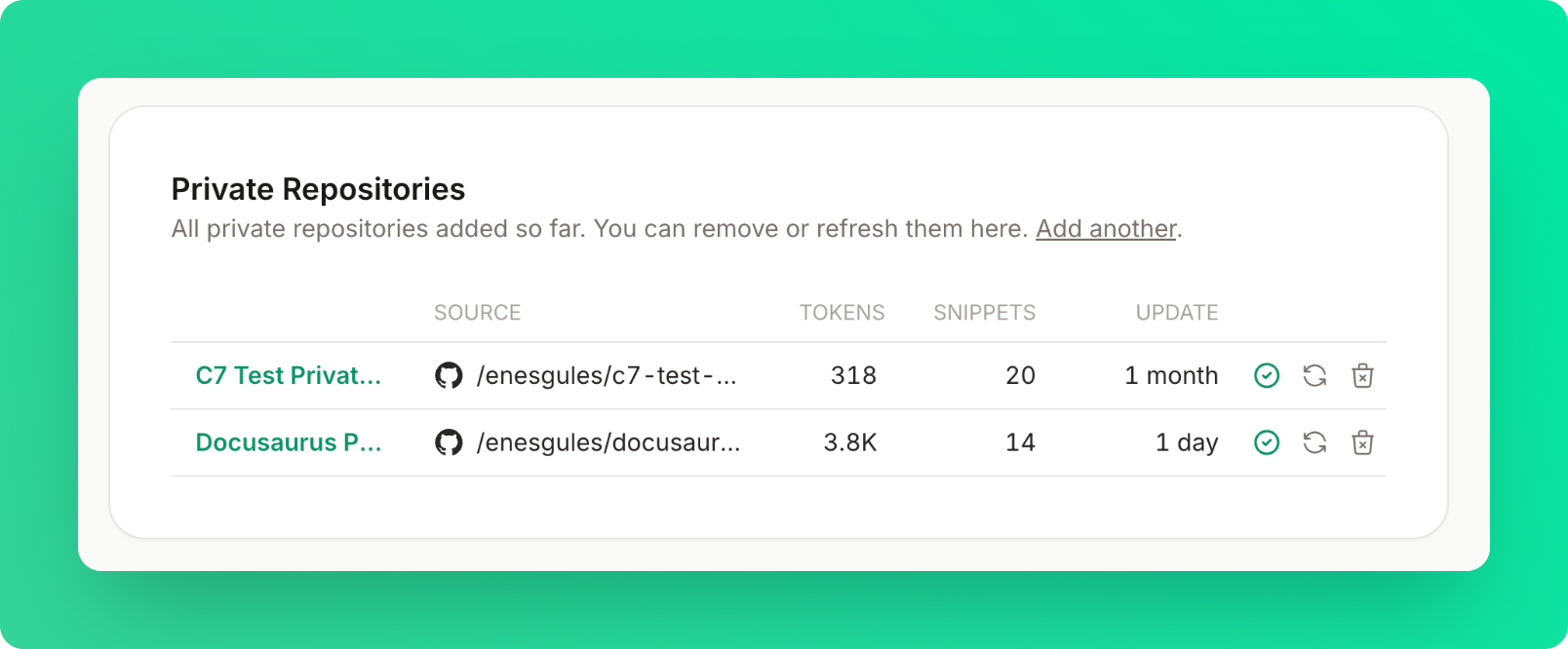
Adding Private Repositories
Follow these steps to add a private repository:- Go to the Add Library page
- Connect your account
- Choose GitHub, GitLab, or Bitbucket
- Authorize Context7 to access your repositories
- Select a repository from your account
- Submit for parsing
You must have a Pro or Enterprise plan to add private repositories.
Repository Management
Refreshing Documentation
Keep your private documentation up to date:- Click “Refresh” next to the repository
- Context7 re-parses the repository
- You’re only charged for changed content - cached pages are free
- After major documentation updates
- After releasing new features
- When you notice outdated information
Removing Repositories
To remove a private repository:- Click “Remove” next to the repository
- Confirm deletion in the modal
- Repository documentation becomes unavailable immediately
Permissions
Access to private repository management is restricted by role. Only Owners and Admins can add, refresh, or remove private repositories. Developers can view repository documentation but cannot manage repositories. See Team Management for the complete permissions table for all team roles.Configuration
Using context7.json
Add a context7.json file to your repository root for better control over parsing: